Instructions for Schools
A step-by-step guide for force-installing Edtech.Training Chrome extensions to your students' managed Chromebooks via the Google Admin Console.
Before you begin
You'll need Super Admin access to your school's Google Admin Console, and the Extension ID and Custom URL for each Edtech.Training extension you want to deploy. Extensions should be force-installed to the Organizational Unit (OU) that contains your student accounts.
- 1
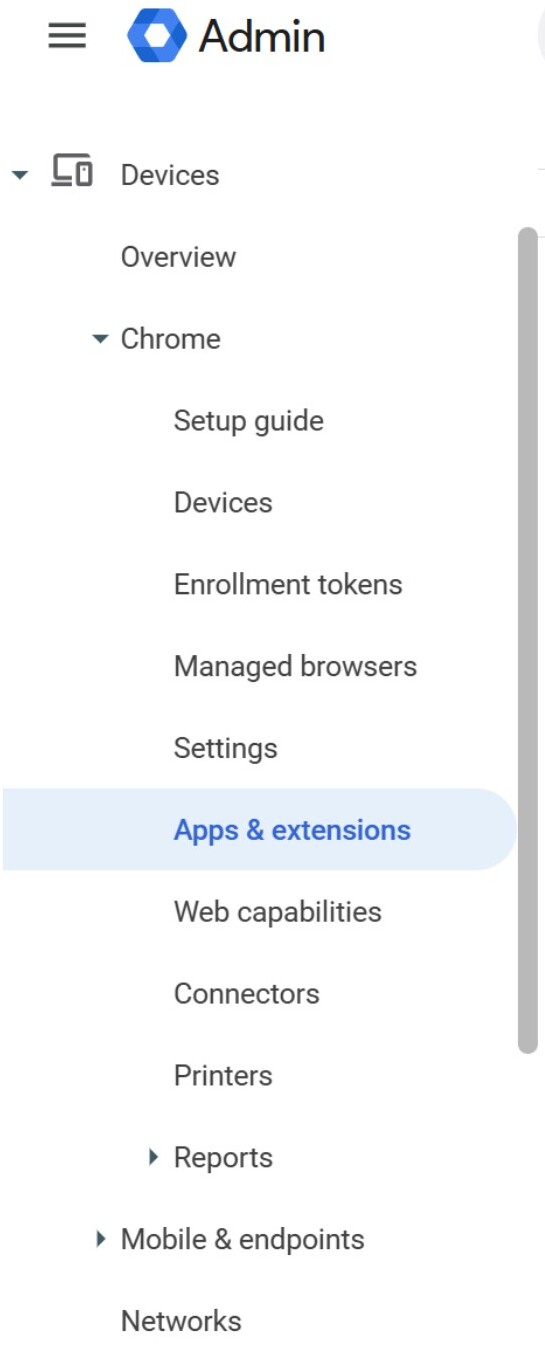
Open Devices › Chrome › Apps & Extensions
In the Google Admin Console, navigate to Devices, then Chrome, then Apps & Extensions.
- 2
Choose the Users & browsers tab
On the Apps & Extensions page, switch to the Users & browsers tab.

- 3
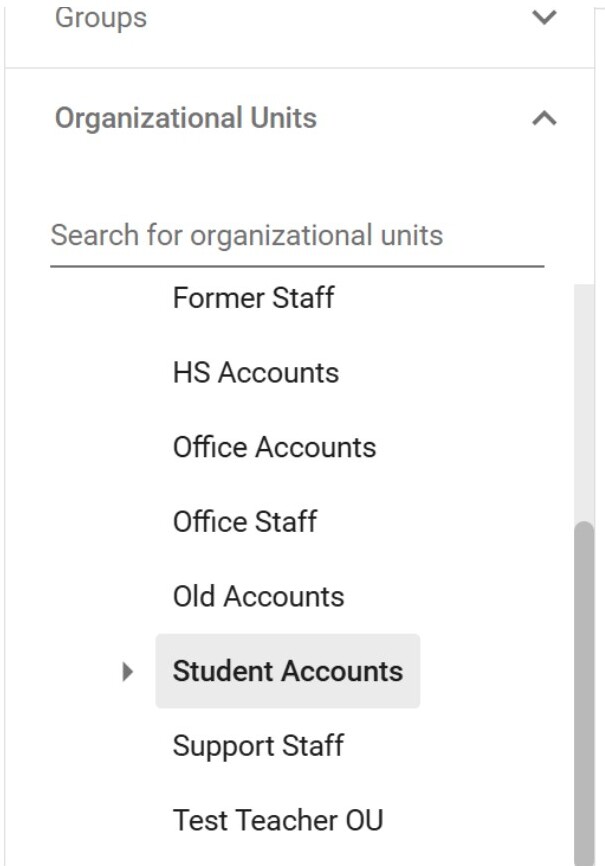
Select the OU containing student accounts
From the Organizational Units list on the left, select the OU that contains your student accounts. Extensions should be force-installed at this level.
- 4
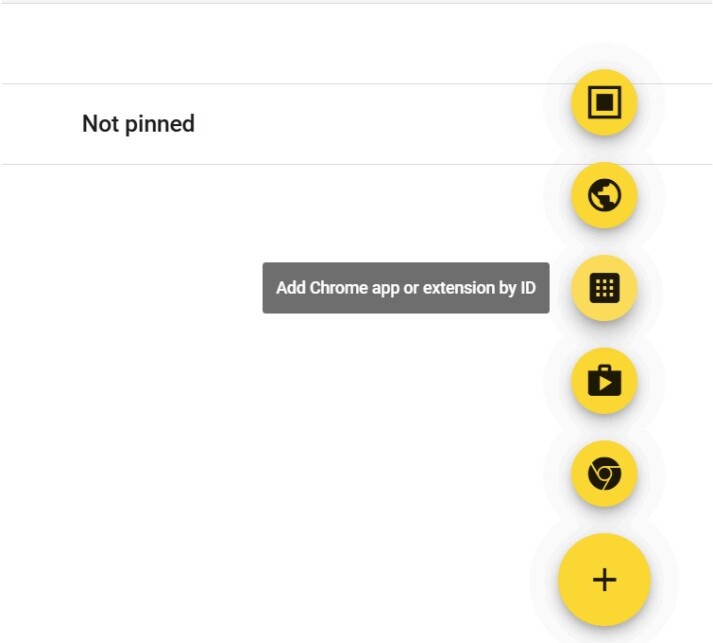
Add a Chrome app or extension by ID
Click the yellow + button in the bottom-right corner and select 'Add Chrome app or extension by ID'.
- 5
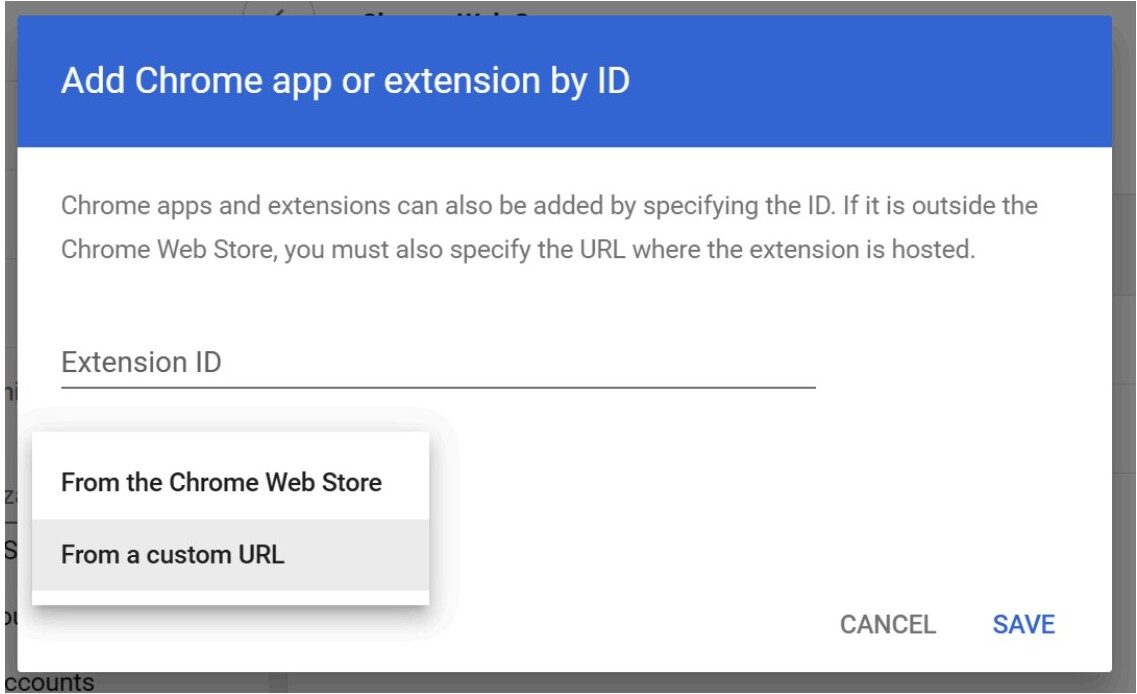
Enter the Extension ID and Custom URL
In the popup, choose 'From a custom URL' and enter the unique Extension ID and Custom URL provided for each Edtech.Training extension. Click SAVE.
- 6
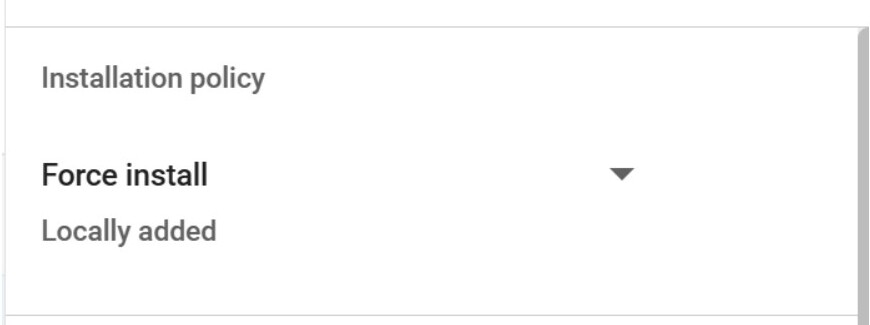
Set Installation Policy to Force install
After saving, a side panel opens. Change the Installation Policy from the default to 'Force install' so the extension deploys automatically to every account in the OU.
- 7
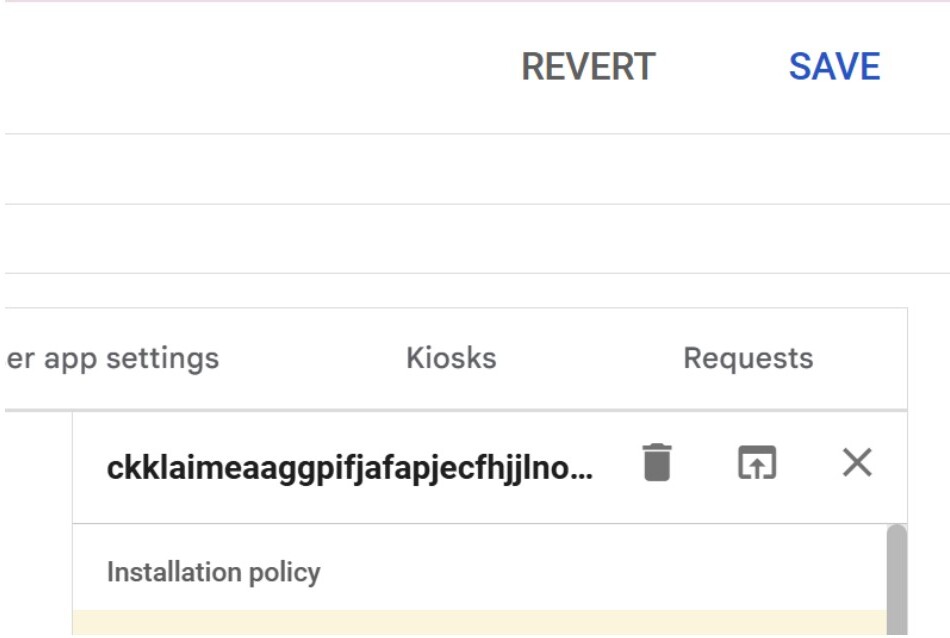
Save your changes
Click the SAVE button in the top-right corner of the page to apply the new policy.
- 8
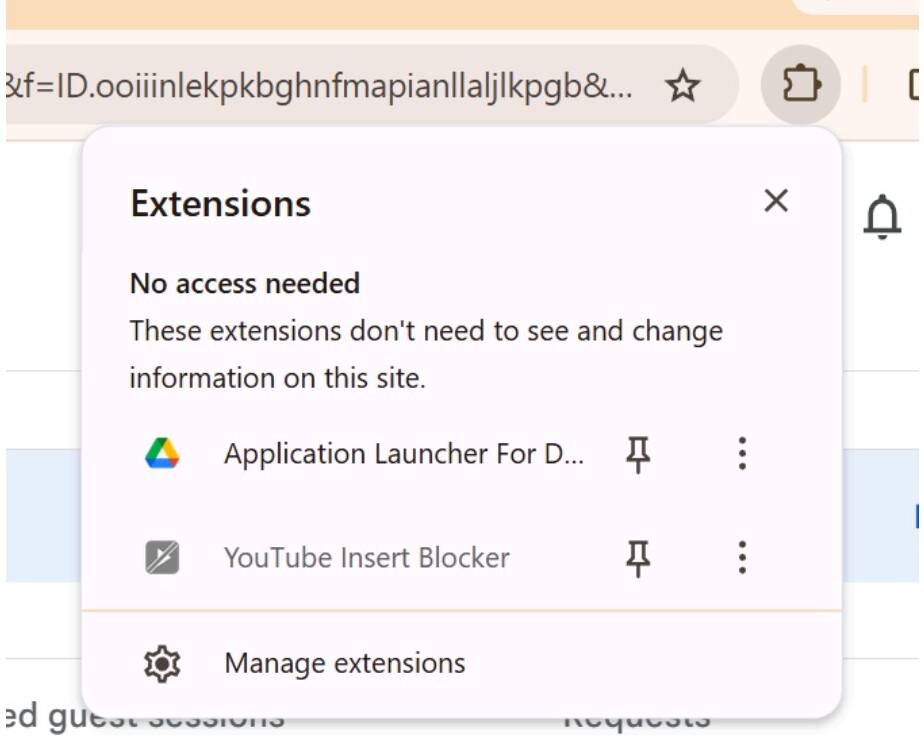
Verify the extension is running
Sign in to a test student account on a managed Chromebook. Even if the chrome://extensions page is blocked, the extension will appear when you click the puzzle-piece icon in the Chrome toolbar.
Ready to deploy?
Browse extensions